n8n stock chart automation
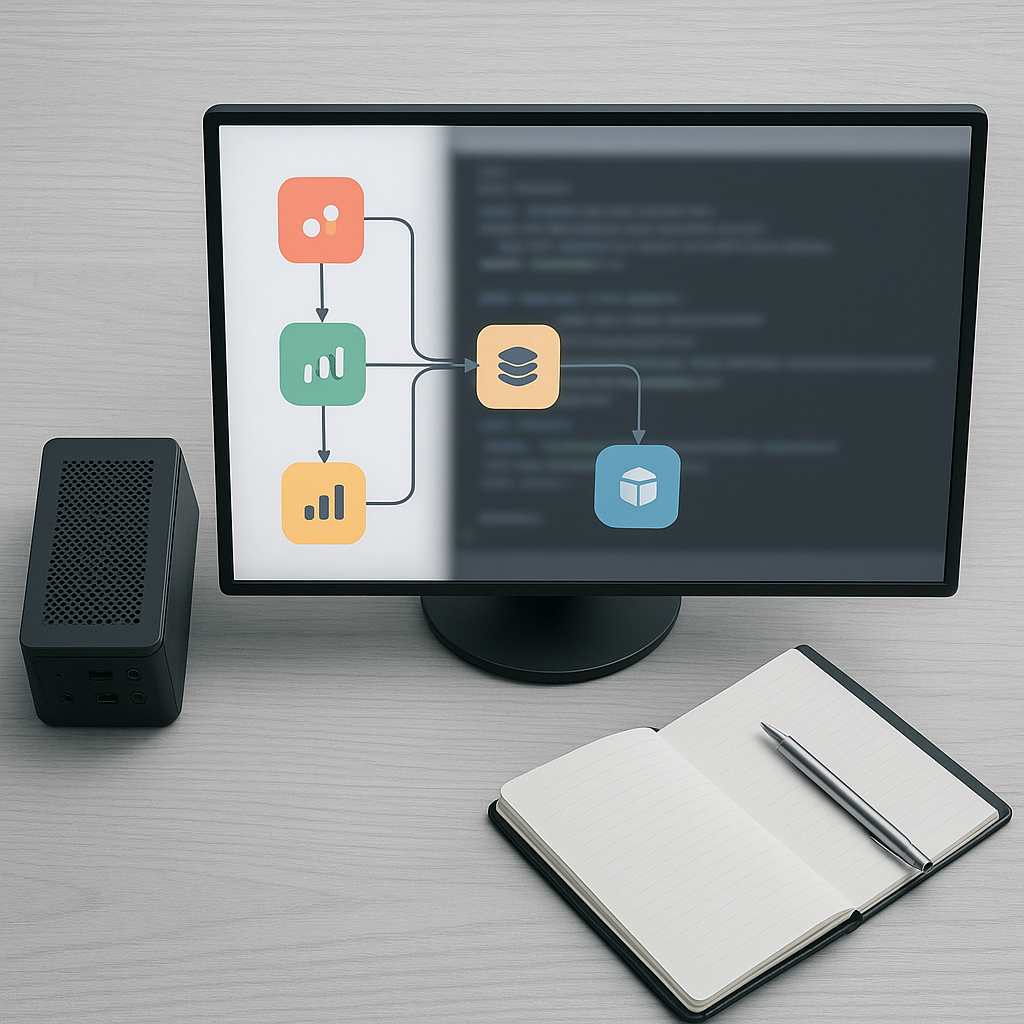
n8n is a node-based workflow engine you can self-host. I use it to glue APIs, scripts and schedulers together without building a full app. That suits stock chart work well: fetch OHLCV data, run analysis, send alerts.
Importance of candlestick analysis
Candlestick analysis gives structure to raw price data. Patterns and indicators such as MACD help spot momentum shifts and trend changes. Automating that cuts manual chart-scrubbing. You get repeatable signals and a clear audit trail for each decision.
Use cases for automation
Typical uses cover scanned lists, backtests and live alerts. For example:
- regular scans for engulfing candles across a watchlist,
- MACD cross alerts for entry or exit signals,
- archiving OHLCV for later data analysis.
I focus on practical outputs: JSON results, CSV logs and alert emails or webhooks.
Setup
Prerequisites for n8n
You need a host (VM, Raspberry Pi or cloud droplet), Docker or Node, and an API that provides OHLCV (open/high/low/close/volume) data. I expect you to have an API key if the provider requires one. Install Git and jq if you plan to script imports and exports.
Installing n8n
I prefer Docker Compose. Create a docker-compose.yml like this:
version: '3.7'
services:
  n8n:
    image: n8nio/n8n:latest
    ports:
      - "5678:5678"
    environment:
      - N8N_BASIC_AUTH_ACTIVE=true
      - N8N_BASIC_AUTH_USER=admin
      - N8N_BASIC_AUTH_PASSWORD=changeme
      - WEBHOOK_URL=http://your-host:5678
    volumes:
      - ./n8n:/home/node/.n8n
Run:
docker-compose up -dIf you prefer a single container, use:
docker run -it --rm -p 5678:5678 -e N8N_BASIC_AUTH_ACTIVE=true -e N8N_BASIC_AUTH_USER=admin -e N8N_BASIC_AUTH_PASSWORD=changeme n8nio/n8nConfiguring your environment
Open http://your-host:5678 and log in. Click the top-right menu, then Credentials, to add API keys for your OHLCV provider. For SMTP alerts, add an SMTP credential with host, port and auth. For persistence, back up the ./n8n volume.
Steps
Creating your first workflow
- Click New Workflow.
- Click the plus icon, search for HTTP Request and add it.
- Set Method to GET and paste your OHLCV endpoint URL. Add the API key in Headers or Query Parameters.
- Add a Function node after HTTP Request. Name it Parse OHLCV.
- Save the workflow and give it a meaningful name. Toggle Active when testing is complete.
Expected result: the HTTP Request node shows a green check on execution and its Output tab contains an array of OHLC objects.
Integrating data sources
Use the HTTP Request node for REST APIs or Google Sheets node for CSV data in a sheet. For multiple sources:
- Add parallel HTTP Request nodes.
- Normalise date formats in a Function node.
- Merge arrays using the Merge node with Mode set to Append.
Exact click sequence: Add node -> Search “HTTP Request” -> Configure -> Execute Node.
Setting up candlestick analysis
Add a Function node to compute candlestick patterns and MACD. I use simple JS for MACD: EMA12, EMA26, MACD = EMA12 – EMA26, Signal = EMA9 of MACD. Paste this code into a Function node:
// input: items[0].json.prices = [{date, open, high, low, close}, …]
const prices = items[0].json.prices.map(p => Number(p.close));
function ema(values, period) {
  let k = 2 / (period + 1);
  let emaArr = [];
  values.forEach((v, i) => {
    if (i === 0) emaArr.push(v);
    else emaArr.push(v * k + emaArr[i-1] * (1 - k));
  });
  return emaArr;
}
const ema12 = ema(prices, 12);
const ema26 = ema(prices, 26);
const macd = ema12.map((v,i) => v - ema26[i]);
const signal = ema(macd, 9);
return [{json:{macd: macd.slice(-10), signal: signal.slice(-10), latest_macd: macd.slice(-1)[0], latest_signal: signal.slice(-1)[0]}}];
Expected output: JSON with latest_macd and latest_signal keys and short arrays for recent values.
Automating alerts
Add an IF node after the Function node. Configure the condition so latest_macd > latest_signal triggers a bullish alert. Then connect the True branch to a Send Email node or Webhook node. For email:
- Add node -> Send Email -> select SMTP credential -> set To, Subject and Body.
- Include the MACD values in the body:
{{ $json.latest_macd }}.
Schedule it with a Cron node: add Cron -> set interval -> connect Cron to HTTP Request to run the whole pipeline.
Verification: run the workflow manually. The IF node should show true or false. The Send Email node shows a successful send with message ID in output.
Export the workflow JSON before changes. Click the three-dot menu in the workflow editor -> Download to save a local copy. If a change alters live state, import that JSON to revert.
Checks
Verifying workflow functionality
Use Execute Workflow (play icon) for a single run. Check each node’s output pane. Look for the green status and non-empty JSON. For scheduled runs, check the Executions page (left menu -> Executions). A successful run shows status “success” and execution time.
Expected verification points:
- HTTP Request returns an array of OHLCV.
- Function node returns numeric MACD and signal.
- IF node evaluation matches the condition.
- Alert node logs a send result.
Testing data accuracy
Test with known historical data. Feed a small CSV slice with a known MACD crossover and confirm the Function node reproduces expected values. Compare against a desktop charting tool if needed. Log CSV output from the workflow to ./n8n for audit.
Check edge cases: missing closes, NaN values, or duplicate timestamps. Add a small validation step in a Function node that rejects items with non-numeric close values.
Monitoring performance
Use the Executions page to monitor run duration. If a workflow routinely takes longer than expected, profile by enabling detailed logging in the Function nodes (console.log) and inspect execution metadata. If the host hits resource limits, move heavy processing off to a separate script or microservice and call it via HTTP.
If it breaks
Troubleshooting common issues
- No data from API: check API key in Credentials and test the endpoint in
curl. - Wrong date formats: normalise dates using
Date.parseand convert to ISO. - MACD looks wrong: make sure the EMA function initialisation matches expectations; a missing seed value shifts early outputs.
- Alerts not sending: check SMTP credentials and firewall rules for port 25/587.
Rollback procedures
Always export the workflow JSON before edits. If activation breaks live runs:
- Disable the workflow using the toggle.
- Import the previously saved JSON: Workflow -> Open -> Import from file.
- Re-enable once confirmed.
If stateful changes occurred, for example marked records or updated databases, write a compensating script to revert those rows and include it in the rollback plan.
Seeking community support
If you hit an edge case, search the n8n community forum or the project’s GitHub issues. When you post, include the workflow JSON export, node screenshots and exact node output snippets. That speeds diagnosis and cuts the back-and-forth.
Start small. Fetch OHLCV, compute MACD in a Function node, check the numbers, then add alerts and schedules. Export before changes so rollback is just a download and an import.