I installed iPadOS 26 on day one and spent a week pushing the productivity side of it hard. The update changes how the iPad gets used, not just how it looks. I wanted it to work as a flexible workstation when needed, and stay a tidy tablet the rest of the time.
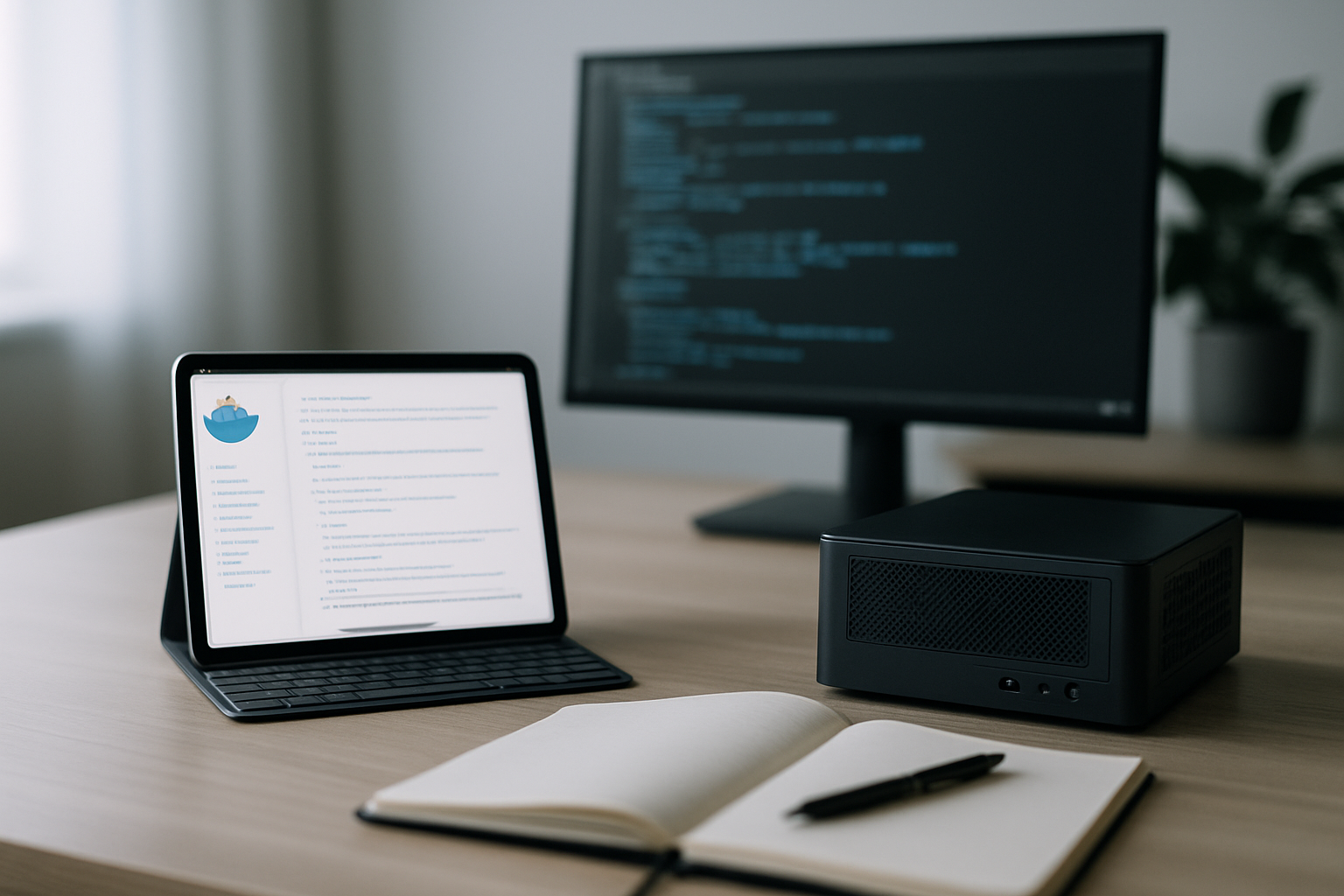
Apple has pushed window management closer to a desktop model. The new system lets you place and resize multiple app windows on the same screen. In practice, that means I can keep a document, a browser, and notes visible at once, and size each one for the task. Computerworld says the update supports up to 12 windows on screen at once, which matters if you keep reference material and chat open alongside the main app. It cuts down on context switching. It also makes the iPad feel more like a small workstation than a single-app device.
Liquid Glass Design Overview
The Liquid Glass redesign is more than a new look. It tightens the visual hierarchy so controls sit where fingers expect them. That matters when you split the screen or float windows, because the interface feels more consistent across apps. Gestures and window handles also felt more predictable than on earlier major releases. I had fewer accidental full-screen switches while moving panes around, which is about as much praise as a UI gets from me.
The Files app gets a proper improvement. Better column navigation, clearer metadata, and stronger external drive handling make the iPad less painful when moving files between devices. I noticed faster previews for large PDFs and a smoother view when mounting network shares. If you deal with a lot of documents, this is probably the most useful system-level change short of using a dedicated file manager.
Real-Time Translation in Video Calls
Live Translation during calls removes a real bit of friction. The feature translates speech in near real time and can show captions locally on the device, so audio does not leave the iPad for cloud processing unless you opt in. That makes cross-language calls less awkward. I tested it on a short call and the delay was low enough to follow the thread without having to keep asking people to repeat themselves.
iPadOS 26 also adds local capture options for conferencing apps: record locally or stream higher-quality video into third-party software. That is handy if you make instructional clips or want a backup of meetings. It also means the iPad can act as a compact capture device for quick demo videos without dragging a laptop into the job.
(For a concise rundown of the main changes and how Apple presents them, see Apple’s iPadOS 26 preview and a detailed analysis on Computerworld.)
https://www.apple.com/ipados/ipados-26/
https://www.computerworld.com/article/4057152/ipados-26-ushers-in-a-new-age-of-productivity.html
Setting Up Multiple Resizable Windows
If you want a usable multi-window setup, start with a layout and stick to it. I used three panes: research in the browser, a work area in a document or whiteboard app, and quick notes. A few things helped:
- Open the main app full screen.
- From the Dock, drag the second app onto the screen edge to make a split.
- Use the window handle to resize, then hold and drag the corners to float a small reference window.
Some apps work better as floating windows, like player and chat apps. Others are better as resizable tabs, like editors and spreadsheets.
Treat the Files app like a lightweight NAS client. Connect external drives and cloud providers once, then build smart folders for project roots you use often. A couple of useful habits:
- Enable Preview in Files for quick scans of PDFs and images.
- Use column view when browsing deep directory trees, because it saves hunting for the right file.
- If you work with large media files, keep the drive connected while editing so you are not copying things back and forth all the time.
Automating Tasks with Shortcuts
Shortcuts is doing most of the work here. I built a few that save time:
- Export the current note to PDF and open it in Preview with one tap.
- Toggle Do Not Disturb, open the meeting app, and set mic and video states for calls.
Shortcuts work best when they do one job. I run mine from the Home Screen, the Shortcuts app, or a keyboard shortcut when I am using a Magic Keyboard.
Customizing Your Home Screen
Less clutter means fewer interruptions. I cut the Home Screen down to one focused page: Dock apps, a Shortcuts folder, and the apps I actually use every day. The widgets are task-focused. I keep one calendar widget and one utility widget, usually timer or quick notes. That keeps the iPad in work mode when it wakes.
Leveraging Live Translation for Communication
Live Translation needs a quick check before I trust it in anything important. My approach is simple:
- Test the language pair in a short call and see whether the terminology is handled properly.
- Use translation captions with speaker labels in the conferencing app if it supports that.
- Treat it as a comprehension aid, not a verbatim transcript. For technical terms, keep a short glossary in Notes or a pinned document.
Practical configuration is mostly about choices. I turned off features that interrupt flow, like automatic app suggestions and over-eager notification previews. I switched on the things that save time, like keyboard shortcuts for frequently used Shortcuts and setting Files to prefer external storage for large media projects. The end result is an iPad that behaves predictably: useful as a laptop replacement for a lot of tasks, and still a clean tablet when I want it that way.
iPadOS 26 rewards a bit of setup. Spend an hour on layouts, Shortcuts, and Files rules, and the device pays that back every day.